Bookings made in chat land on your team calendar.
The AI agent takes the booking in the chat and it appears on your team’s Google Calendar.
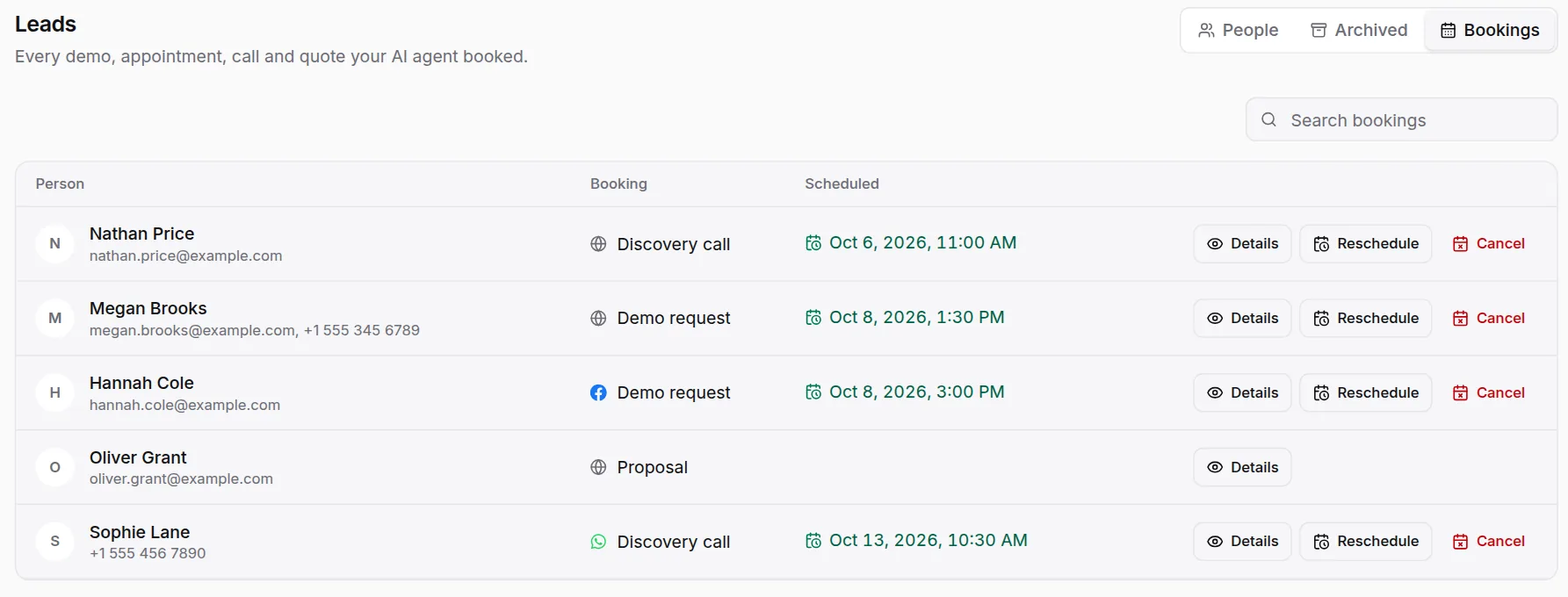
What goes to Google Calendar
The agent agrees the date and time with the customer inside the conversation. The booking is saved in HiQBot against the contact, and it shows up on the Google Calendar your team already plans its day on.
Every booking the agent takes
Demos, test drives, tables and callbacks are written into HiQBot first, then copied to your calendar the moment they are booked.
Who it is for and when
The event shows the customer and the time. It is a plain calendar event and has no meeting link.
How to connect Google Calendar
- 01
In the HiQBot dashboard, open Integrations and connect Google Calendar.
- 02
Let the agent book. It collects the date, time and details in the chat.
- 03
Find the booking in HiQBot, against the contact and next to the conversation that produced it.
- 04
Open Google Calendar. The same booking is on the calendar your team uses.
Good to know
Your team can move or cancel a booking from the HiQBot dashboard, and the AI agent can do it in the conversation.
A reschedule or a cancellation made afterwards does not change the calendar event, so check the Bookings list in HiQBot for the current time.
Google Calendar is the only calendar HiQBot connects to today.
Where teams use it
Connect Google Calendar to your conversations.
Start the 7-day trial and connect Google Calendar from the dashboard. It takes a few steps.